 KidsLearnLock
Learn before you play
Age-right learning breaks during screen time, all controlled from your phone.
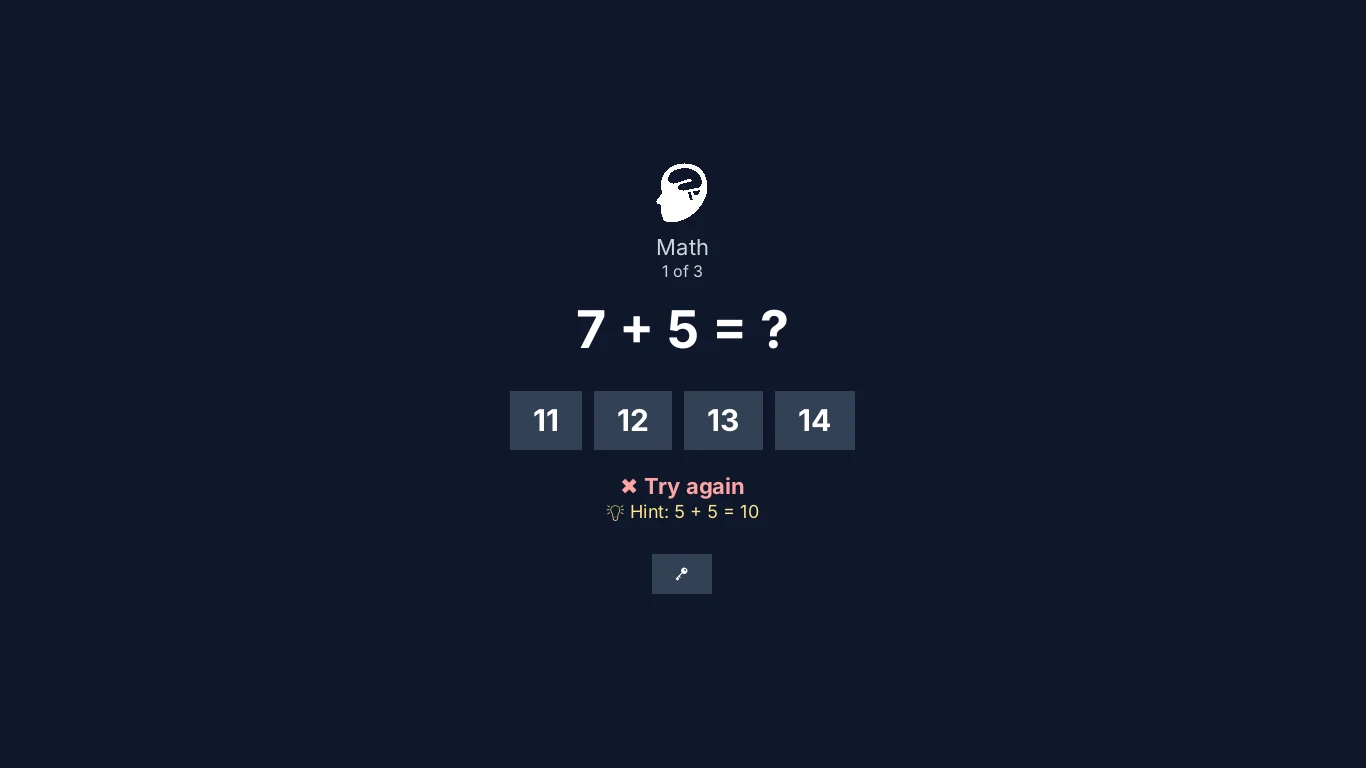
Every few minutes of play, a short exercise covers the screen. Once it's solved, your child goes right back to the game, exactly where they left off.
- 7 days free, no card
- No ads
- No account
- English · عربي · עברית
✏ Exercises that grow with your child
- Math with numbers and pictures, times tables, counting, clocks, sequences, fractions and word problems
- Letters with sound and pictures, reading and spelling, and tracing letters with a finger
- English, science and general knowledge, opposites, puzzles, mazes and connect-the-dots
- Difficulty that levels up on its own, stars, and hints that explain the method, not the answer
- Reads the question aloud for children who can't read yet, and accepts spoken answers
- School curriculum by grade, and review of your child's mistakes until they're mastered
- After a mistake the solution is drawn, and the choices teach telling look-alikes apart (b, d or p?)
👨👩👧 Full control from your phone
- Easy pairing between your phone and your child's device with a QR code
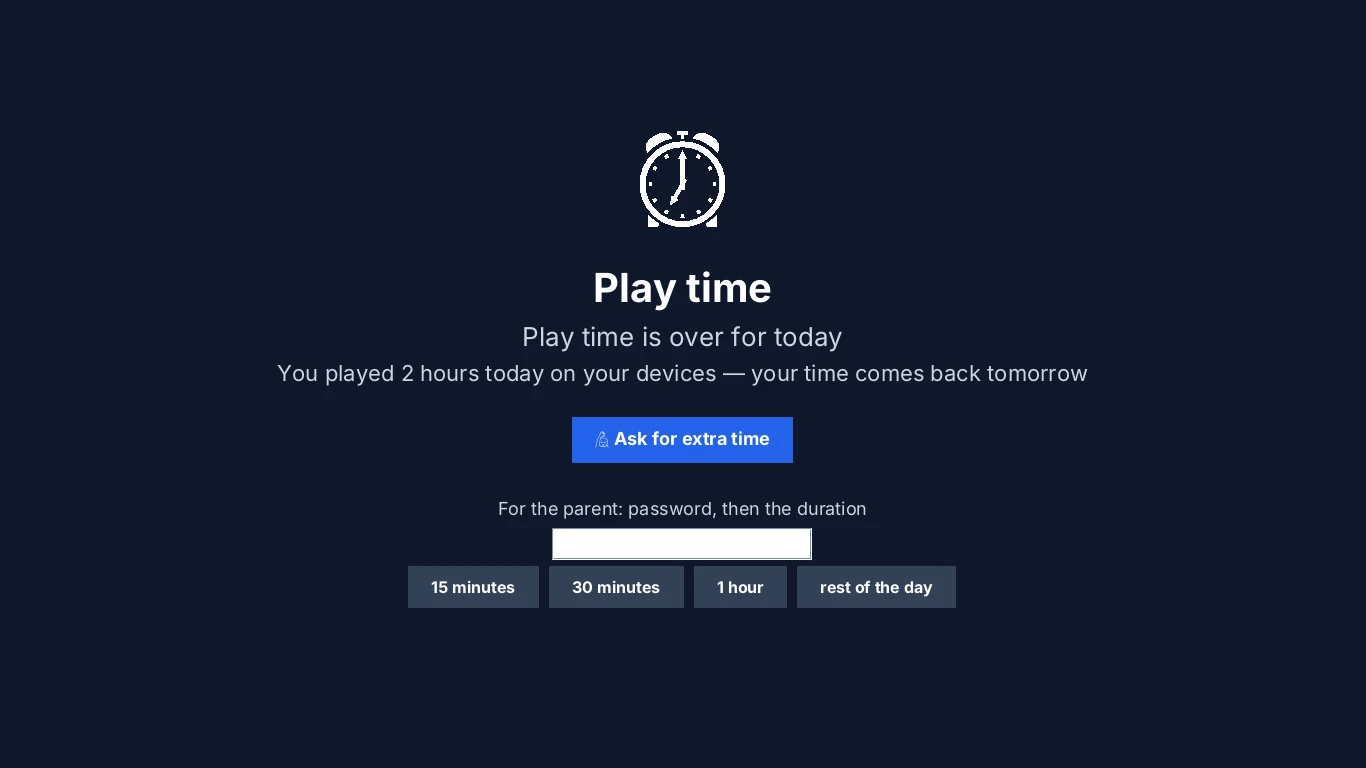
- A daily play-time limit across all their devices, bedtime, and remote lock
- Lock specific apps, set a daily limit per app (YouTube, games…), and new apps stay locked until you approve them
- Protection against removing KidsLearnLock, with an instant alert if someone tries
- "Earn time": extra play minutes in exchange for exercises
- Daily and weekly reports: what they learned, where they made mistakes, and which letters they mix up — with extra practice until they're mastered
- Send your own questions and school words from your phone
- Several children, and several devices per child
🛡 Content protection
- Blocks categories of harmful websites, and tells you about every attempt
- Word guard: clears inappropriate searches and lets you know
- Inappropriate image detection (optional — on the device itself)
🌐 Three languages, and each student learns in theirs
In English, Arabic and Hebrew. An English-speaking student learns English; an Arabic-speaking student learns Arabic, Hebrew and English; a Hebrew-speaking student learns Hebrew and English — whatever the phone's language is.
How it works
Install it on your phone and your child's device
One app that asks on first launch: is this the parent's phone or the child's device?
Pair them with a QR code
Scan the code with your phone, and the two are linked.
Choose what fits your child
Age, exercises, play time and apps — and a report reaches you every day.
🔒 Your child's privacy comes first
No ads and no account. Messages between your phone and your child's device are end-to-end encrypted, and every screen check happens on the device itself.
Full privacy policy🔍 Permissions, explained
- KidsLearnLock is a parental-control app: the parent sees reports and alerts from the child's device, and the child's device shows a persistent KidsLearnLock notification while it runs.
- Word guard uses Android's Accessibility service — after an explanation screen and consent — to read on-screen text on the child's device itself.
- Browsing protection uses a local VPN for website names only, resolved through Cloudflare's family DNS — never page contents.
- "📴 Turn off the internet" uses the same local VPN at times the parent chooses — nothing is read, stored or sent, and phone calls keep working.
Pricing
Try it for a full week, no card needed.
Then one subscription, monthly or yearly, for all your family's devices — subscribe and cancel in Google Play on the parent's phone.
💻 KidsLearnLock for Windows PCsComing soon
Protect your child's Windows PC and turn play time into learning time — all controlled from your phone. Works with the KidsLearnLock app on the parent's Android phone.
What you need
- Windows 10 or 11, 64-bit
- The KidsLearnLock app on the parent's Android phone
- A standard (non-administrator) Windows account for the child — the setup helps you with that
The download will be here soon
Questions
Does the exercise close my child's game?
No. The exercise only covers the screen; once it's solved, your child goes back to the game exactly where they left off.
Does my child need an account or email?
No account and no email. You pair your child's device with your phone using a QR code, once.
Can my child remove it or get around it?
You get an instant alert if anyone tries to stop it. For the strongest protection, turn on the optional "Full Lock": it blocks safe mode, factory reset, guest users and clock changes.
Which devices does it run on?
Android phones and tablets, Android 7.0 or later. Several children, and several devices per child, on one subscription.
What happens after the 7 days?
You choose a monthly or yearly subscription in Google Play on your phone and can cancel any time. Without a subscription the app stops when the trial ends.
Where do my child's reports go?
Only to your phone, end-to-end encrypted. All the details are in the privacy policy.